Appearance
📖 My Journal (Journal & AI)
The Journal is your secure space to process emotions, log triggers, and track your daily mood. All entries here are Zero-Knowledge Encrypted.
1. Writing an Entry
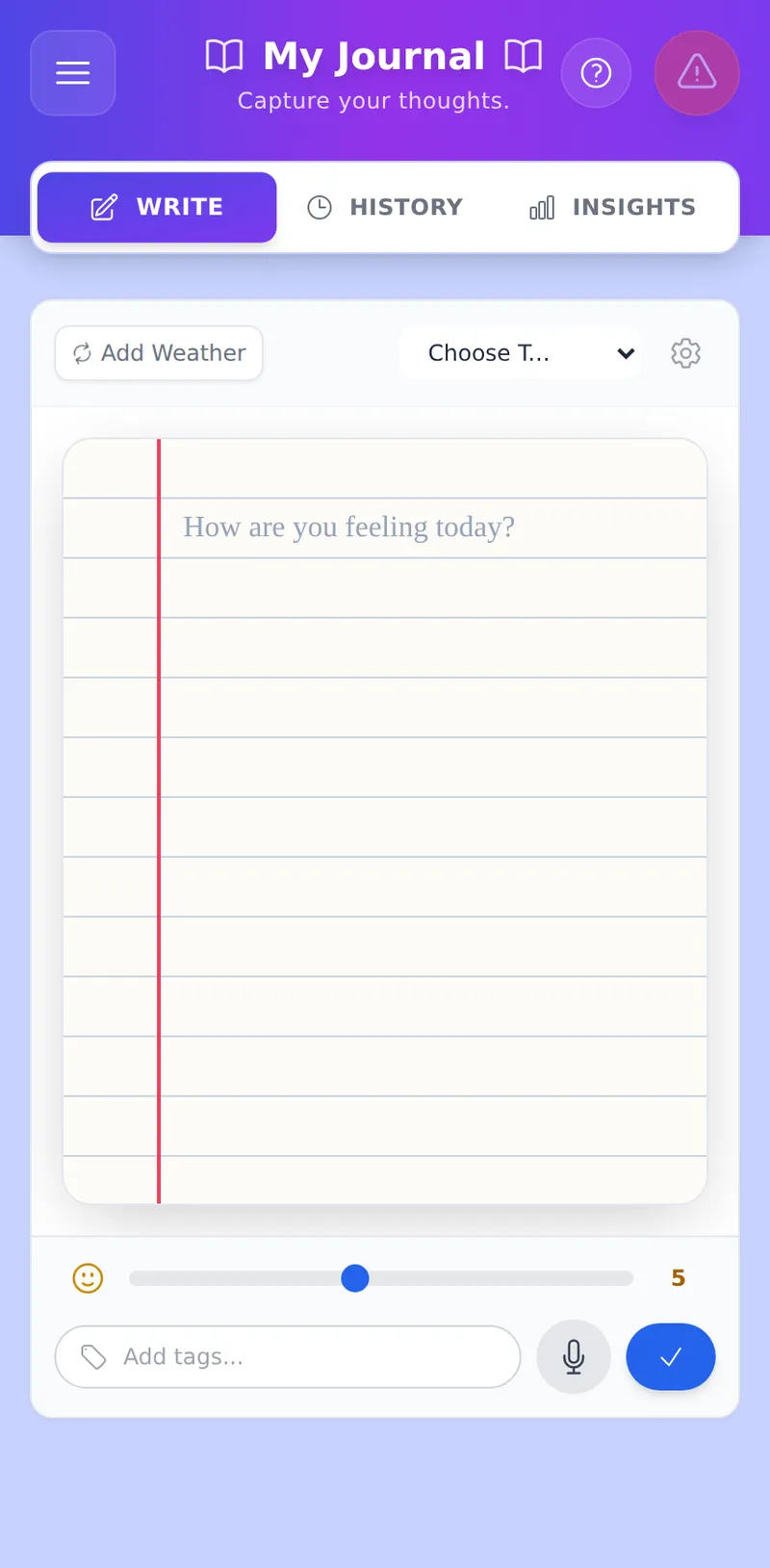
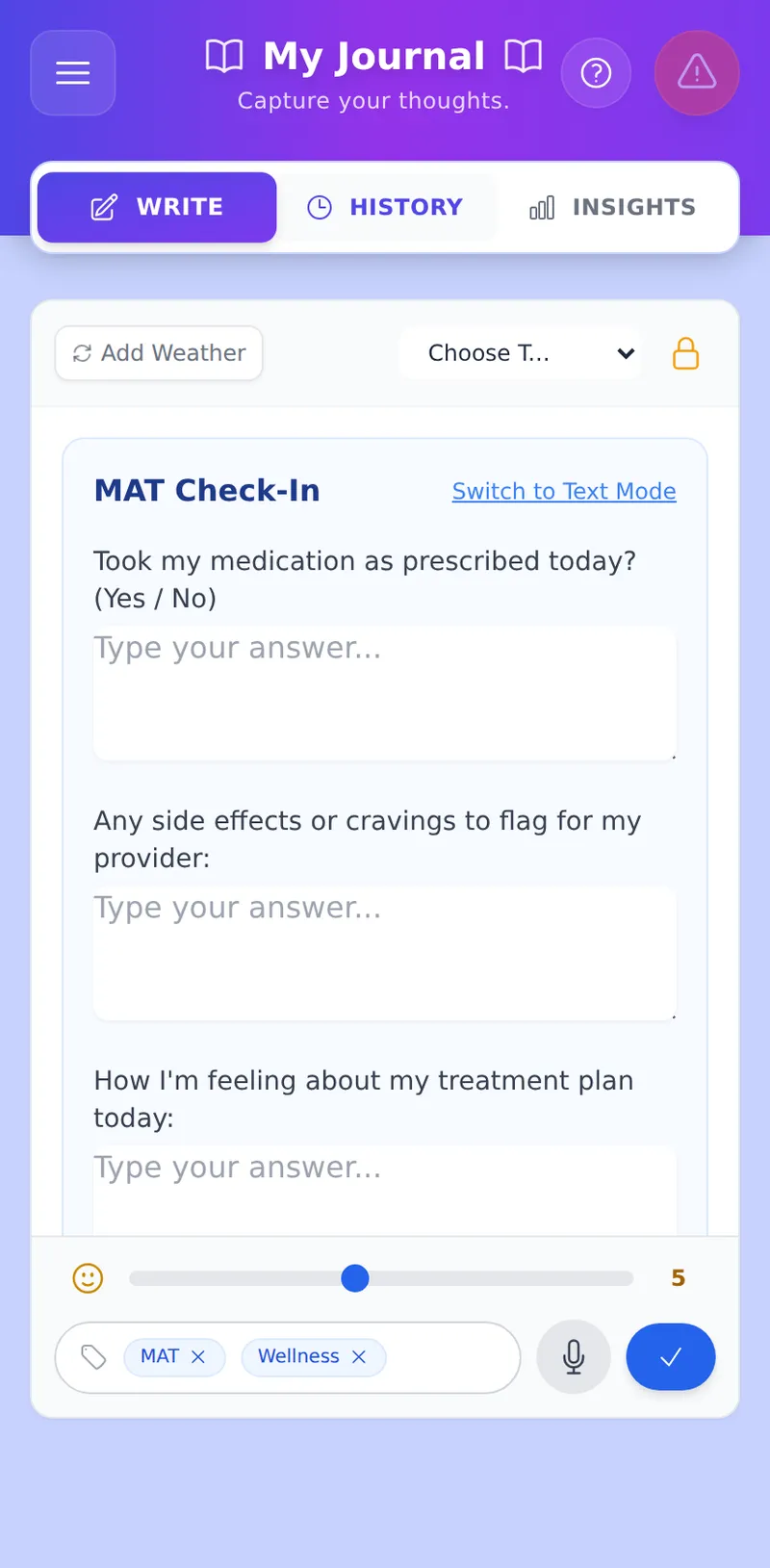
- Text Mode: Tap "Choose Template..." to open a picker grouped by moment — In the Moment (crisis/urge templates like "Urge Log" and "Urge Surfing"), Daily Rituals (morning/evening check-ins), Reflection & Insight (deeper processing), Free Write, and My Templates (your own, Premium) — 15 built-in templates in all, each still tagged with its recovery modality (Twelve-Step, CBT/SMART, DBT, and others) for reference. Some templates drop straight into free-write text; the rest open a short guided form, one labeled box per prompt.
- Metadata: Always slide the 1-10 Mood scale and add custom tags (e.g.,
#Anxiety,#Meeting) to help the AI track your patterns later.
Voice-to-Vault
Tap the Microphone icon to dictate your entry instead of typing.
- Speak naturally — describe how you're feeling, what happened, or what's on your mind.
- When you stop, MRT sends the audio to Google Gemini for transcription.
- Gemini returns the transcribed text, an estimated mood score (1–10), and a set of suggested tags.
- Review the pre-filled entry, adjust anything you want, then save.
The final entry is Zero-Knowledge encrypted before it is written to Firestore — Gemini sees your audio for transcription only and the processed text is never stored in plain form.
Best for David: If you're in an acute state and can't face a blank text field, Voice-to-Vault removes the friction of typing. Just speak.
2. History & Navigation
Navigate to the History tab to view past entries.
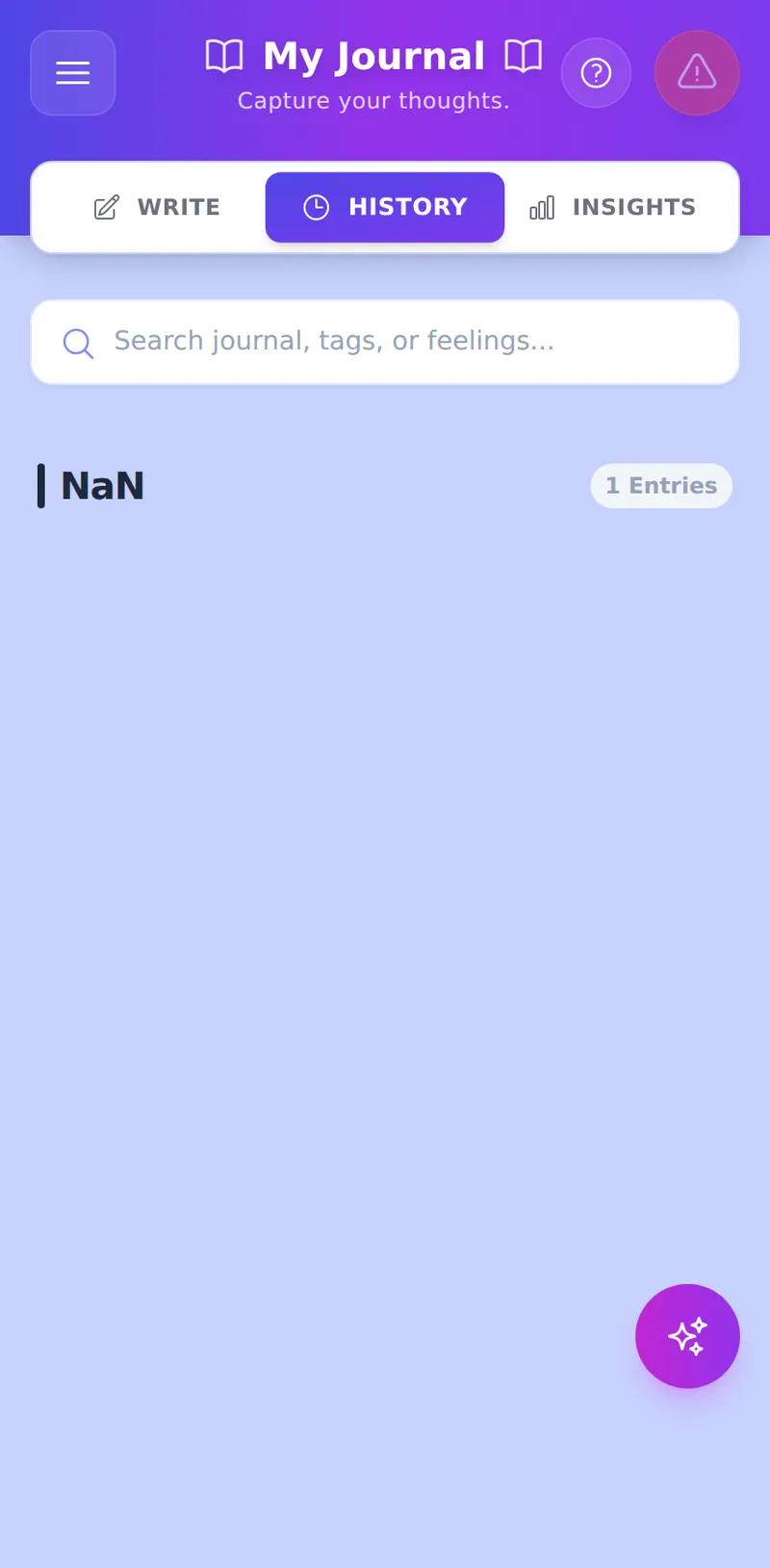
- Timeline View: Your entries are grouped by Year and Month.
- Navigation: By default, only the current year's entries load, with the current month open — this keeps History fast to open even with a long journaling history. Tap any Month header within the current year to expand it. To browse a prior year, tap "Load earlier entries" first — this loads your full history, after which every year and month becomes navigable.
- Search: Use the top search bar to filter by keyword or tag. By default, search only covers the current year (fast); if you don't find what you're looking for, tap "Search your full history instead" to search everything you've ever written.
- Share: Click the "Share" icon on any card to decrypt it and copy it to your clipboard for a sponsor or therapist.
- SMART Tool completions: Finishing a tool from the Tools Hub (like a Cost Benefit Analysis or Thought Record) also drops it into this timeline, tagged with a small colored badge and a one-line summary — tap the card to expand the full answers. These entries are view-only here (no pencil/edit icon, since editing structured answers as free text could corrupt them) but still support Share and Delete. An unfinished, in-progress tool session doesn't appear in this timeline — only completed ones — so check the tool's own Resume entry point in the Tools Hub for anything left mid-flow.
3. AI Analysis Wizard (The Compass)
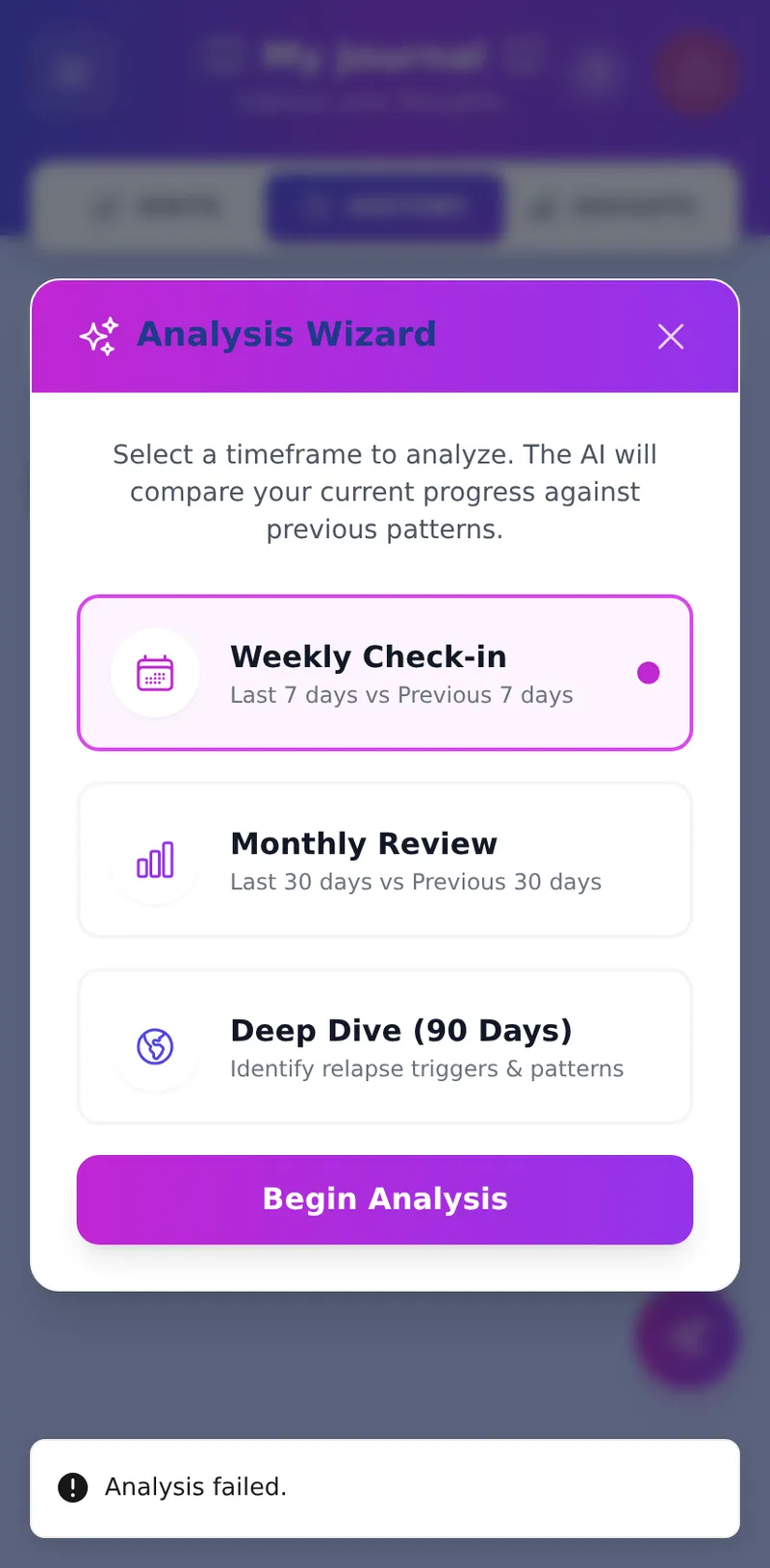
Click the floating Analyze button to have the AI review your past entries and generate an actionable recovery strategy.
Usage Limits
To protect the system and ensure fair usage, AI analysis is governed by your tier:
- Standard (Free) Tier: Limited to 1 Weekly Analysis per week, 1 Monthly Analysis per month, and 1 Deep Pattern scan per month.
- Supporter (Premium) Tier: Unlimited, on-demand access to all AI pattern recognition tools.
4. Insights & Analytics
Navigate to the Insights tab to view your data visually.
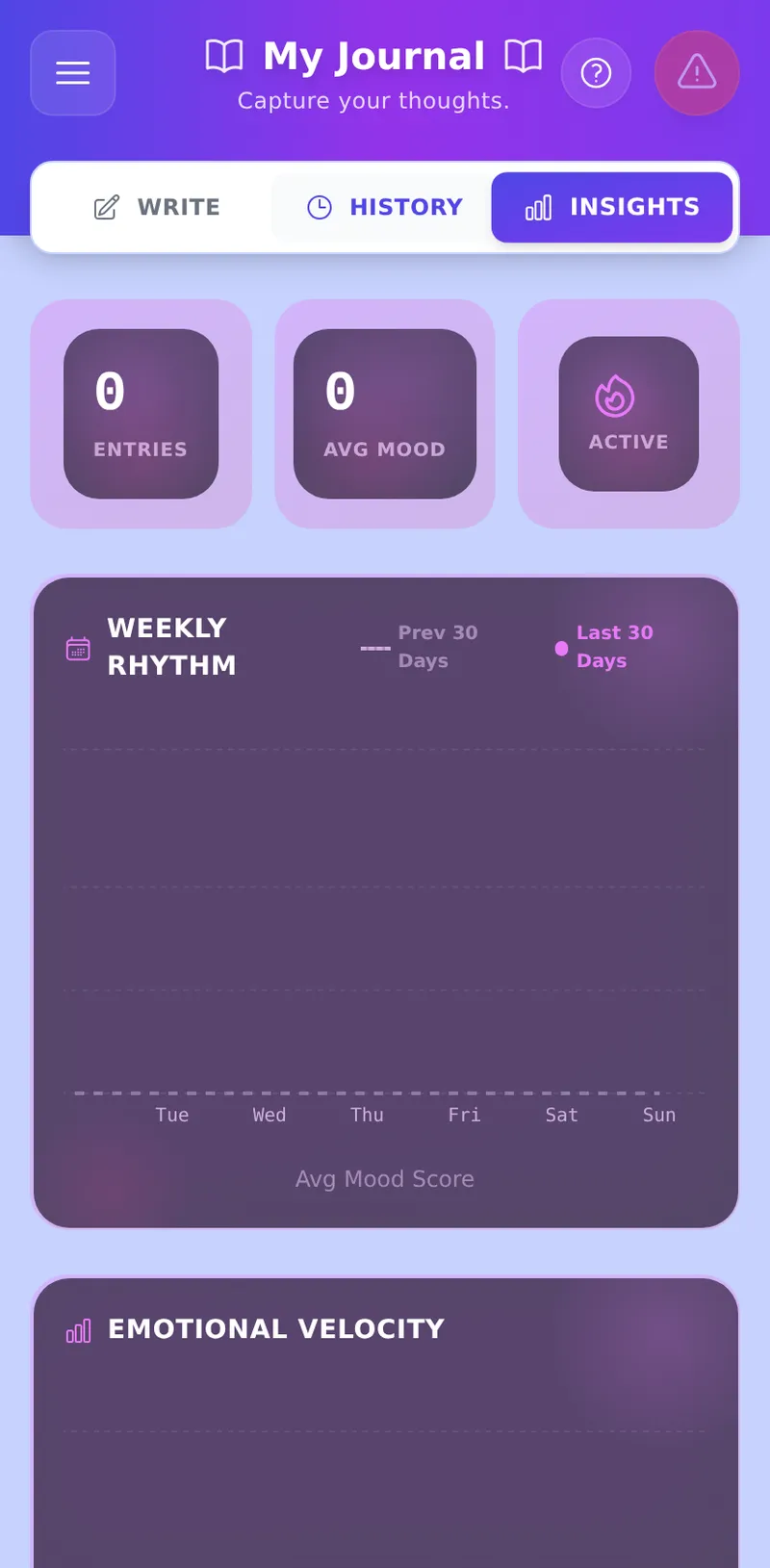
📊 Emotional Velocity
This gradient chart shows the "flow" of your mood over the last 14 days.
- The purple curve represents your Mood.
- The orange line represents the Temperature.
- Why this matters: Look for patterns. Does your mood dip when the temperature drops? Do you have "spikey" weeks or smooth sailing?
📉 Weekly Rhythm (Baseline vs. Reality)
This chart compares your Current 30 Days against your Previous 30 Days.
- Solid Purple Bar: Your average mood for that day of the week recently.
- Dotted Grey Line: Your average mood for that day last month.
- How to read it: If the Purple Bar is taller than the Dotted Line, you are improving compared to your baseline!
☁️ Recurring Themes (Word Cloud)
See what you talk about most often.
- Filtering Noise: MRT automatically hides common template words like "Morning" or "Check-in."
- Custom Filters: Tap the Eye Slash Icon in the corner to manage your ignored words. If you want to hide a specific name or place from the cloud, add it there.
- Deep Dive: Click any word in the cloud to instantly search your journal history for that specific topic!
5. Recovery Capital Matrix (ROSC)
The Recovery Capital Matrix lives on the Insights page (its own sidebar icon). It provides a monthly snapshot of your holistic wellbeing across the four SAMHSA recovery domains — Health, Home, Purpose, and Community — using a 5-question guided check-in and an optional AI analysis of your recent journal entries.
For the full walkthrough — including the radar chart, vault-locked behaviour, longitudinal overlays, and free vs. premium differences — see the Insights guide.