Appearance
📊 My Insights & Recovery Capital
The Insights page (sidebar icon) is your analytical home — it combines the Recovery Capital Matrix (a monthly holistic check-in) with your full AI Insights log (a history of every Compass analysis you've ever generated).
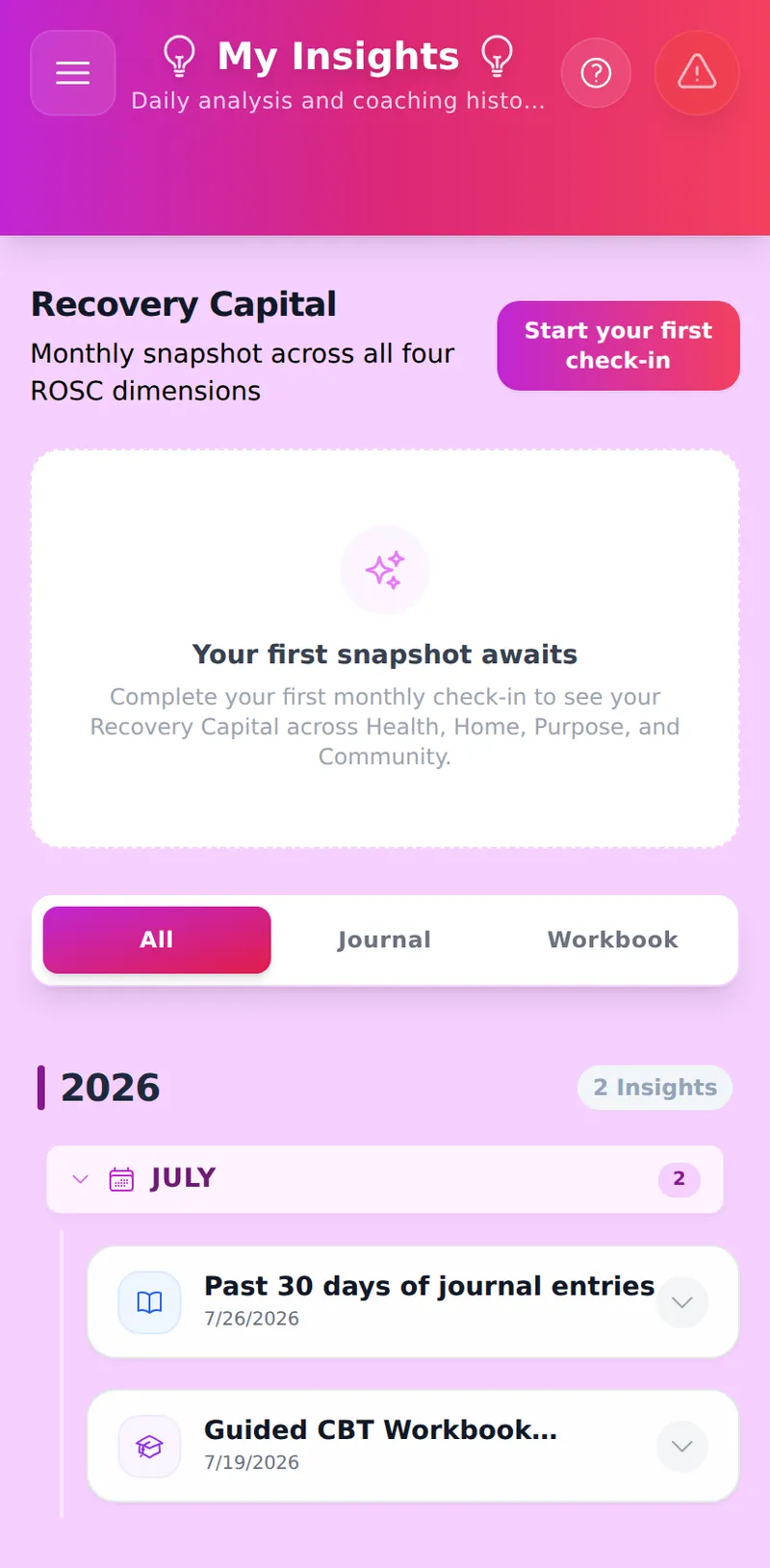
1. Recovery Capital Matrix (ROSC)
Recovery Capital is the breadth of internal and external resources you can draw upon to sustain recovery. MRT measures it across four domains defined by SAMHSA's recovery framework:
| Domain | What it reflects |
|---|---|
| Health | Physical and emotional wellbeing, self-care, mood trend |
| Home | Stability and safety of your living situation |
| Purpose | Meaningful activity — work, service, creativity, family |
| Community | Connections with people who support your recovery |
The Insights page shows a compact Recovery Capital summary card — your latest snapshot plus a "View trends & history" link that opens the full Recovery Capital page (its own full screen, reached from Insights), with three tabs: Snapshot, Trends, and History.
The Check-In
A "Start this month's check-in" (free tier) or "Start this week's check-in" (Premium) button appears whenever you're eligible. Free tier is rate-limited to once per calendar month — consistent with clinical ROSC methodology and designed to prevent compulsive reassessment. Premium can check in once every 7 days instead: because the Premium assessment is anchored to your actual journal entries rather than self-report alone, reassessing against an unchanged journal history simply produces an unchanged score, so the tighter cadence doesn't carry the same compulsive-reassessment risk.
Tapping the button opens a 5-question guided flow (approximately 60–90 seconds):
- Answer each question on a 1–5 scale using strength-based language — "Thriving" at the top, neutral language at the bottom. There is no failure state.
- Answering advances to the next question automatically. A back arrow lets you revisit and change a previous answer before you finish.
- The last answer triggers the analysis. If it fails mid-way (e.g., lost connectivity), your answers are temporarily saved so you don't have to repeat the check-in on retry.
David: The check-in is designed to take under two minutes. Each screen shows only one question. If you dismiss mid-flow, you'll see "Continue your check-in" next time you return.
Snapshot Tab
Shows your current pill capsules — an animated set of segments for your four domain scores (each 1–10), lit up sequentially with premium glassmorphic gradients.
- Score numbers alongside each domain pill display your exact score, with dynamic trend indicators (e.g.,
▲ +2) showing growth since your last check-in. - Total score is shown prominently at the top: e.g., "31 / 40."
- If your AI narrative is available (Premium, Vault unlocked), tapping through reveals it along with identified strengths, growth areas, and — for each domain — one suggested action for your next check-in, with a one-tap Add to Tasks button.
Trends Tab
A longitudinal view across every check-in you've completed, not just an adjacent comparison: a total-score area chart plus a four-line chart (one line per domain), with a 6/12/All range toggle. Because domain scores and totals are stored unencrypted, this chart renders even when your Vault is locked — only the narrative text underneath a card requires unlocking.
Walt: With enough history, the Trends tab is the closest thing MRT has to a longitudinal Recovery Capital report — track a domain's trajectory across months (or weeks, on Premium) without opening every past card individually.
History Tab
Past assessments are listed as expandable cards. Tap any card to see that period's full pill capsules. If your Vault is unlocked, tapping also decrypts the AI-generated narrative, identified strengths, growth suggestions, and per-domain next actions for that period.
Vault-Locked Behaviour
Domain scores (the numbers) are stored unencrypted and are always visible, including on the Trends chart. The AI narrative, strengths, growth areas, and suggested actions are encrypted — this table shows exactly what requires the Vault:
| Content | Encrypted? | Visible when Vault locked? |
|---|---|---|
| Domain scores (1–10 per domain) | No | Always visible, including Trends charts |
| Total score | No | Always visible |
| AI narrative, strengths, growth areas, suggested actions | Yes (AES-GCM) | Blurred — "Unlock vault to read your recovery story." |
| Check-in CTA button | — | Hidden — analysis requires decrypting your journals before sending to Gemini |
Free vs. Premium
| Free | Premium | |
|---|---|---|
| Check-in cadence | Once per calendar month | Once every 7 days |
| Domain scores from self-report | ✅ | ✅ |
| Gemini reads your recent journal entries | ❌ | ✅ (last 7 days, widening to 30 if that's too few entries) |
| Blended AI score + narrative | ❌ | ✅ |
| Identified strengths + growth suggestions | ❌ | ✅ |
| Per-domain suggested next action + Add to Tasks | ❌ | ✅ |
| AI output encrypted before storage | — | ✅ |
2. The AI Insights Log
Below the ROSC panel, the Insights page shows a chronological log of every AI analysis you have generated from the Journal or Workbooks. These are the outputs from the AI Analysis Wizard (The Compass) — journal pattern reports, workbook Wisdom Reports, and deep pattern scans.
Filtering
Use the filter bar at the top to narrow your log:
- All — every insight, newest first.
- Journal — insights generated from your journal history.
- Workbook — Wisdom Reports generated from your step-work answers.
Navigation
Insights are grouped by Year and Month. Tap any year or month header to expand it. The total count per group is shown in the header so you can see at a glance how your engagement has changed over time.