Appearance
📋 My Tasks (Tasks & Habits)
The Tasks module helps you build consistent routines and track actionable recovery steps.
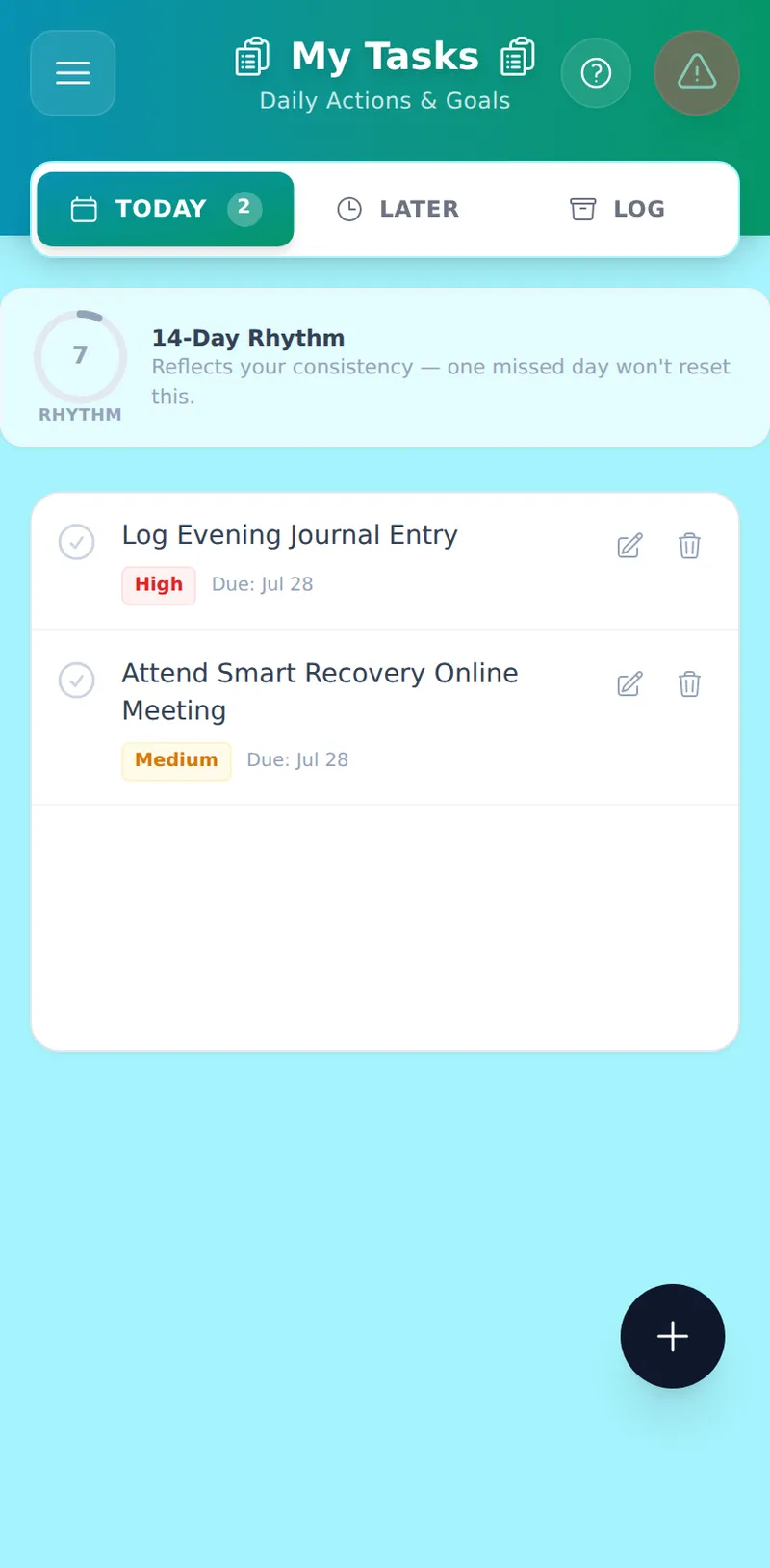
Smart Tabs
Your tasks are automatically sorted into three lanes so you always know exactly what needs attention:
- Today (default): Everything on your plate right now — tasks due today and anything overdue from previous days. Overdue items appear at the top so nothing gets buried. A badge shows how many tasks are waiting.
- Later: Tasks scheduled for tomorrow or further ahead. When you complete a recurring habit, it moves here immediately with its next due date — so Today only ever shows what still needs your attention.
- Log: Your completed history. One-time tasks you've finished appear here, grouped by month.
AI-suggested tasks (purple sparkle icon) appear in Today or Later based on their due date — they follow the same routing as your own tasks.
Completing a Task — Swipe or Tap
You have two ways to complete a task:
- Tap the circle on the left of any task row — the original method, always available.
- Swipe right on a task card — the new gesture shortcut. A green layer reveals beneath the card as you drag. Release past the threshold and the card slides off with a brief vibration. Done.
Both methods go through the same completion logic, including the Future Task safety check.
Skipping a Task — The Forgiveness Tap
Recovery is not a straight line. If you can't face a task today, swipe left on the card.
An amber "Let today go" sheet slides up. You have two choices:
- Move to Tomorrow — the task quietly shifts to tomorrow's list. No streak penalty.
- Keep for Today — dismiss the sheet; nothing changes.
The copy is streak-aware: if your streak is intact you'll see "Your streak is safe — this is just one day." If you've already missed a few days you'll see "Recovery continues tomorrow." There is no red state, no "failed" language, anywhere in this flow.
Adding a Task — Quick Capture
For fast capture (e.g., a sponsee action item between meetings):
- Pull down from the top of the task list (when already scrolled to the top).
- A bottom sheet slides up with a single text field, auto-focused.
- Set priority (🔴 High · 🟡 Medium · 🟢 Low) and a date chip (Today · Tomorrow · This week).
- Tap "Add to Today" or press Enter.
The task appears immediately. Pull capture defaults to a one-time task with Medium priority due today. Tap "More options →" to open the full task form for recurring schedules and categories.
The floating + button still opens the full task form directly — Quick Capture is an additional shortcut, not a replacement.
The Rhythm Score
Above the task list you'll see a small circular ring labelled 14-Day Rhythm. This is your consistency score — a number from 0 to 100 based on how many of the last 14 days included at least one completed habit.
- Green (70–100): Strong, consistent rhythm.
- Amber (40–69): Building momentum.
- Muted (0–39): Early days — the score reflects where you are, not where you're going.
Unlike a streak counter, one missed day barely moves the Rhythm Score. Missing a single day out of 14 scores ~93, not zero. The score is a reflection of your actual pattern over two weeks, not a punishment for imperfection.
AI Context Cards
Tasks generated by the AI Compass (purple sparkle icon) now show you why they were suggested. Below the task title you'll see a short one-line summary in muted text.
Tap the card to expand it:
- The full one-sentence context appears (e.g., "From your Step 4 workbook — you identified isolation as a trigger three times this week.")
- A "See insight →" link takes you back to the workbook section or journal analysis that generated the task.
If the source was later deleted, the link is replaced with "Source no longer available" — no broken navigation.
The "Smart Reset" System
We don't believe in "Schedule Debt" or guilt.
Why tasks move to Today (Lazy Evaluation)
MRT does not run a background clock. Instead, the reset fires on-demand the moment you open the app and your tasks are loaded. If you missed "Morning Meditation" yesterday, that task is not moved to today at midnight — it's moved at the moment you open the app next. This is called lazy evaluation: the check only runs when the data is actually needed, not on a fixed schedule.
This means you will never open the app to find a pile of overdue copies of the same habit. There is always exactly one instance due today, no matter how many days have passed.
How the streak penalty works
| Situation | What happens to your streak |
|---|---|
| You complete the habit | Streak increments by 1 |
| You miss one day (streak was > 0) | Streak resets to 0 |
| You miss again (streak is already 0 or below) | Streak decrements by 1 each consecutive miss |
The negative range tracks consecutive missed days, which feeds the streak-aware copy in the Forgiveness Tap. Once you complete the habit again the streak climbs back from wherever it sits.
Active vs. silent reset
The silent Smart Reset and the Forgiveness Tap (swipe left) produce an identical Firestore write — the due date moves to today. The only difference is the Forgiveness Tap wraps the same action in a compassionate UI that lets you choose between tomorrow or today, and tells you whether your streak is still intact.
Creating a Task — Full Form
Tap the floating + button to open the full task form. You can set:
- Priority: High, Medium, or Low.
- Category: Recovery, Health, Life, or Work.
Recurrence Options
| Schedule | What it means | Example |
|---|---|---|
| Once | One-time task, never repeats | "Call insurance company" |
| Daily | Every day (or every N days with an interval) | "Morning meditation" every day |
| Weekly | Repeats on specific days of the week you choose | "Step group" every Tuesday and Thursday |
| Bi-weekly | Every two weeks on the same day | "Sponsor call" every other Sunday |
| Monthly | Same calendar date each month | "Service commitment" on the 15th |
| Monthly (relative) | A specific weekday within the month | "1st Monday of the month", "Last Friday of the month" |
For Monthly (relative), choose the week position (1st, 2nd, 3rd, 4th, or Last) and the day of the week. The app calculates the exact date each month automatically — no manual adjustment needed.
Completing Future Tasks
If you attempt to check off a task scheduled for a future date (via tap or swipe), a confirmation modal will appear. This prevents accidentally clearing tasks you need to do later in the week.